
Oxford Figma workspace
We believe great user experiences are key to successful digital services and we are here to help you achieve just that
Welcome to the UX Team's Figma! We are the User Experience (UX) Centre of Excellence and organising Figma workspace for product teams across in University of Oxford. In addition, we are sharing design resources, helping people to practice Figma and supporting them to learn from each other by sharing their Figma good practices.
This document will give you an overview of how to join the UX Team's Figma. If you have any questions, please contact Joseph Talbot: joseph.talbot@digital.ox.ac.uk.
Start using Figma
If you would like to start using Figma in your project, please read this document first, then, contact Joseph Talbot: joseph.talbot@digital.ox.ac.uk with the following information:
- Your Figma manager's name and email address
- Cost centre code
- When you would like to start using Figma
Please note that it can take up to 5 business days to set up your Figma workspace and Figma manager user. Once your Figma Manager user is set up, they will be able to add other members and assign them appropriate seat types.
Allocating viewer seats has no cost implication and therefore can be done quite freely, full seats (editor seats) are chargeable (see pricing below).
When adding or removing a full seat (editor seat), please contact Joseph Talbot: joseph.talbot@digital.ox.ac.uk in order that we may manage cross-charging of seats to the appropriate cost-code.
Your cost centre will be cross-charged for the seats you have on a monthly basis.
Adding a new user
When adding a new user, they will be created with the appropriate seat level (see pricing below), added to the User Experience Team as a viewer. They can then be granted edit permissions to individual projects as appropriate.
Price
Figma has four seat types: admin, full seat (editor seat), viewer seat and owner. If you would like to use Figma, you need to choose a full seat (editor seat) or viewer seat. The price is as follows.
- Viewer seat: free
- Full seat (editor seat): £18 per person per month
If you are not sure which one is better for you, we recommend starting with a viewer seat. If you come across any cases you need a full seat, you can upgrade to a full seat.
We are paying the Figma bills and cross-charging you for the number of full seats you request. Figma is a subscription service, so it will keep billing you every month unless you contact us to cancel the sheet.
File Structure
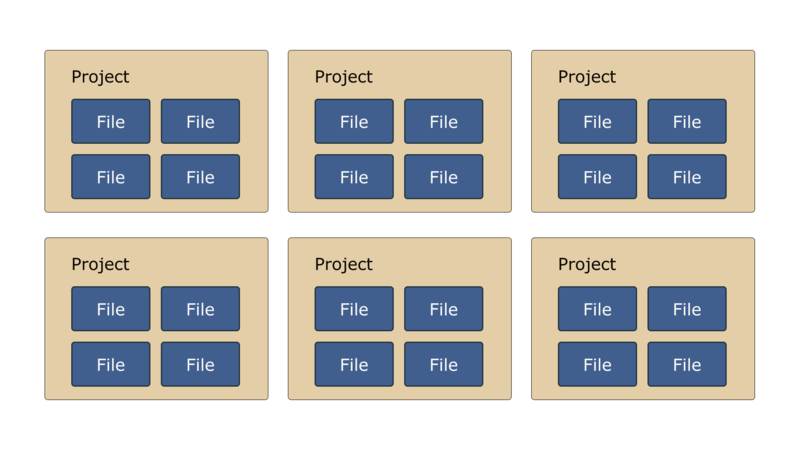
Figma calls a folder a project. You can store your design files in a project(=folder).
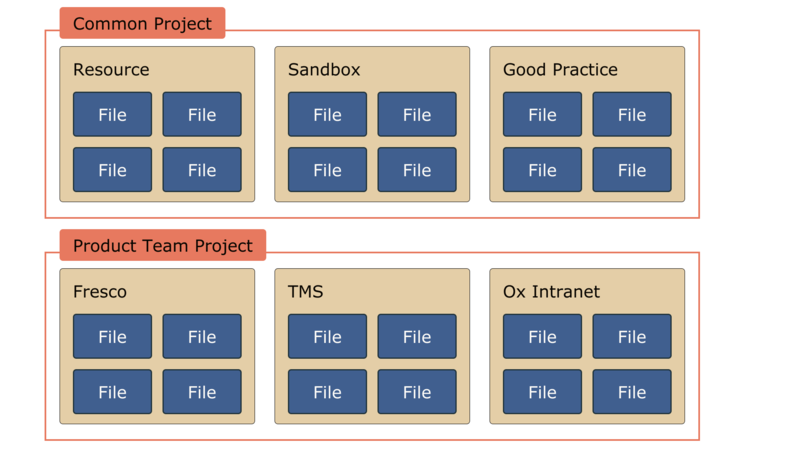
We have two types of projects: common projects and product team projects. In common projects, we have resource, sandbox and good practice projects. Everyone in Figma can access the common projects. Whereas in product team projects, each product team has their own project, and it is only visible to the people the product team members grant access to and the UX team. For example, if you are a member of the Fresco Team, you have access to the three common projects and Fresco projects, but not to TMS and Ox Intranet projects.
Common projects and product team projects are categories only for the UX Team's Figma for internal purposes, not an official Figma category.
Common Projects
Common projects are spaces for people to access resources provided by the UX team, practice Figma techniques, share their best practices and learn from each other. Anyone on the product team using Figma can access these projects. We have the following common projects.
- Resource
- Sandbox
- Good Practices
Figma manager
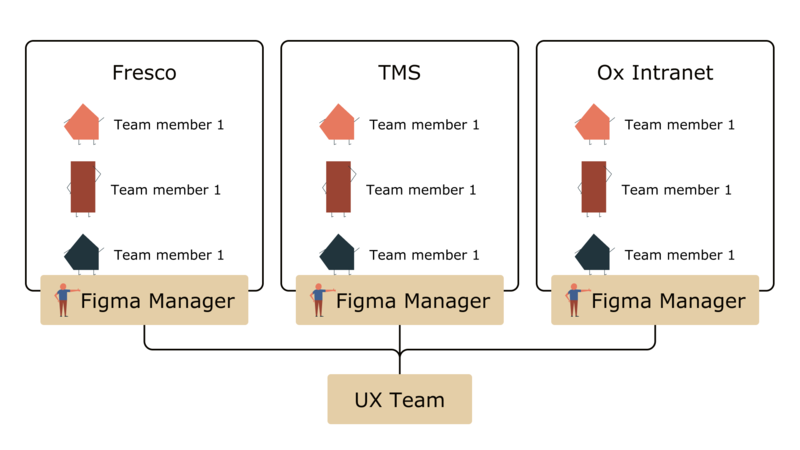
Figma manager is a role to manage access to your product team's project and common projects for your product team members. Please assign one team member to the Figma manager. A Figma manager must have a full seat to grant access to other team members.
We grant a full seat to your Figma manager, set up a project (=folder) for your product team, and grant access for your Figma manager to your project and common projects. After the setup, the Figma manager manages all the access to your project and helps your team members to grant access to common projects.
Add and remove members
A Figma manager is responsible for managing your product team members' Figma access. Please feel free to add and remove members as you like. However, please contact Joseph Talbot (joseph.talbot@digital.ox.ac.uk) to add or remove a full seat (editor seat) in order to manage the bills.
Leaving Figma
If you do not need Figma any more, please contact Joseph Talbot (joseph.talbot@digital.ox.ac.uk) to remove all the full seats (editor seat) including your Figma manager. After you remove all the full seats (editor seat), you can access your Figma files as a viewer for a certain period. We will decide how long we will keep completed Figma projects as we operate this Figma file organisation system.
Responsibilities
We (the UX Team) are responsible for setting up the product team’s project and granting a full seat to the Figma manager. However, we are not able to support managing the access list for each project.

