
• Follow your department's procedures to notify your manager and/or HR team about your absence.
• If you have a fit note, provide it to your manager and/or HR team as per local practice.
• Refer to the University's sickness policy in the Staff Handbooks along with the HR Support webpages.
• Medical appointments are not recorded in HR Self-Service.
• For any questions about your sickness absence, contact your local HR team.
How-to guide: Employee Self-Service - Complete sickness absence
The overview below shows that there are multiple ways to record sickness absence, allowing for flexibility to staff, managers and HR teams in different scenarios across the University.
Refer to your manager and local HR team for guidance on which scenario should be followed, noting the following:
- Only scenarios C and D will require you to update HR Self-Service.
- In all cases, you are required to notify your manager/ HR team inline with your departmental processes (not via HR Self-Service).
- Scenario C is managed in HR Self-Service via the website.
- Scenario D can be processed in HR Self-Service via the website or via the Mobile App.
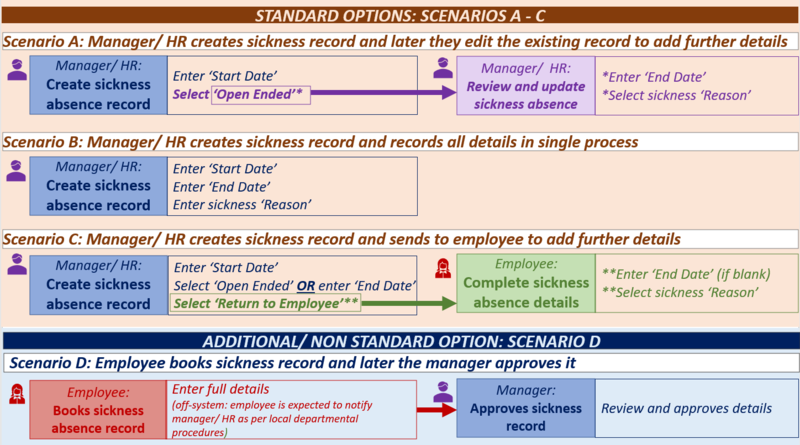
These instructions should only be followed where the manager/ HR team have part recorded the sickness record and you have received a system generated email inviting you to complete your sickness record (scenario C):
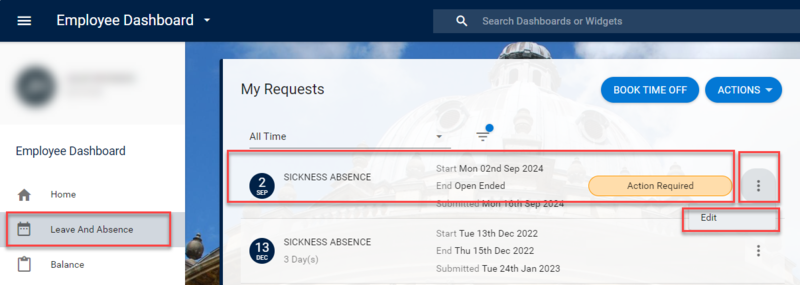
- Log in and navigate to the Leave and Absences tab.
- Locate the relevant sickness record (refer to the email notification) and click the ellipsis (three dots) next to it, then select Edit.
- Enter the last date of your absence in the End Date field.
- Select the Reason for your absence from the drop-down list.
- If you select Other, provide additional details in the Comments field.
- Click Submit (bottom right). A success message will appear. Wait for the green line to fill.
Before following these system steps, seek guidance from your line manager or local HR team to confirm if this option is accepted in your department.
In all cases, you are required to notify your manager/ HR team inline with your departmental processes (not via HR Self-Service).
When you have returned to work follow the system steps below.
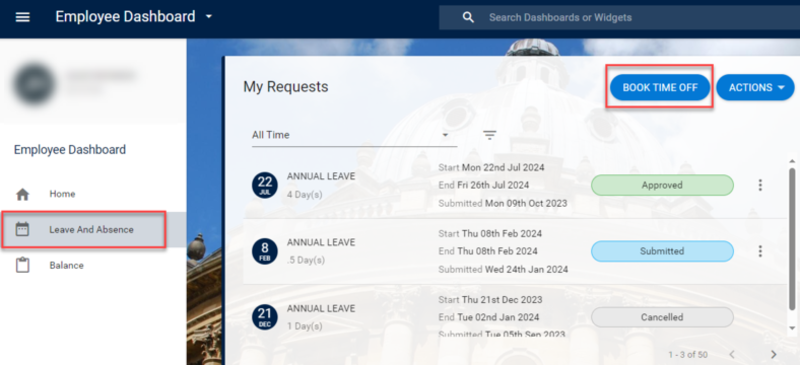
- Log in and navigate to the Leave and Absences tab.
- Click Book Time Off from the My Requests widget.
- The Create New Leave Request form opens.
- Complete the following fields:
|
Field name (* mandatory) |
Description |
|---|---|
| Appointment* | Use the drop-down to select the correct appointment (if you have multiple). |
| Leave Type* | Select Sickness Absence. |
| Start Date* | Use the calendar icon to select the start date of your leave. |
| End Date* | If booking full days of leave, use the calendar icon to select your end date. For partial days, switch the toggle against 'Part Day' and follow instructions below. |
| Part Day (only if applicable) |
Switch the toggle on to activate partial day options (the End Date field will disappear).
|
| Reason* | Select option as applicable. |
| Comments | Optional - add any relevant details. |
- Click Submit. Your request will be visible in the My Requests widget on your Employee Dashboard. You will receive an email once your manager has approved the request.

